Build a workout log in Google Sheets from Apple Health CSV

You can keep a weekly training log in a spreadsheet using workouts exported from Apple Health as CSV. The WorkoutPort training-log template does the totals for you. You import it once, check that it shows the expected sample totals, then add your own rows and decide which ones count. Nothing updates automatically: every new batch of workouts is a manual export and paste.
Apple's own Export All Health Data produces an XML export of your Health data, not a per-workout CSV (Apple: sharing Health data). The template is built around the Workouts file from WorkoutPort's Google Sheets-ready CSV export (workoutport-google-sheets-workouts.csv): one row per workout, with columns id, type, start, duration_seconds, distance_meters, energy_kcal, source and sample counts. The template's sample rows come from a synthetic CSV, made by WorkoutPort's sheet-export code from seven invented workouts. One ID appears twice on purpose, and one strength session has no distance.
Import the template and check the sample totals
To use it in Google Sheets, open a new spreadsheet, choose File → Import, upload the .xlsx file and pick Create new spreadsheet. Google lists .xlsx among the file types it imports (Google Sheets: import data sets). Before adding anything of your own, open the Training log sheet and confirm that it shows these totals for the week starting 2026-10-05:
| Sport | Included rows | Minutes | Known km | No distance |
|---|---|---|---|---|
| Cycling | 2 | 150 | 65.9 | 0 |
| Running | 2 | 78 | 13.2 | 0 |
| Strength | 1 | 45 | (blank) | 1 |
| Walking | 1 | 40 | 3.1 | 0 |
Total minutes should read 313, and Rows awaiting review should read 0. We checked the template's values locally in a spreadsheet engine, not in Google Sheets. If your import shows different numbers or errors, don't add your own data until you've found out why.
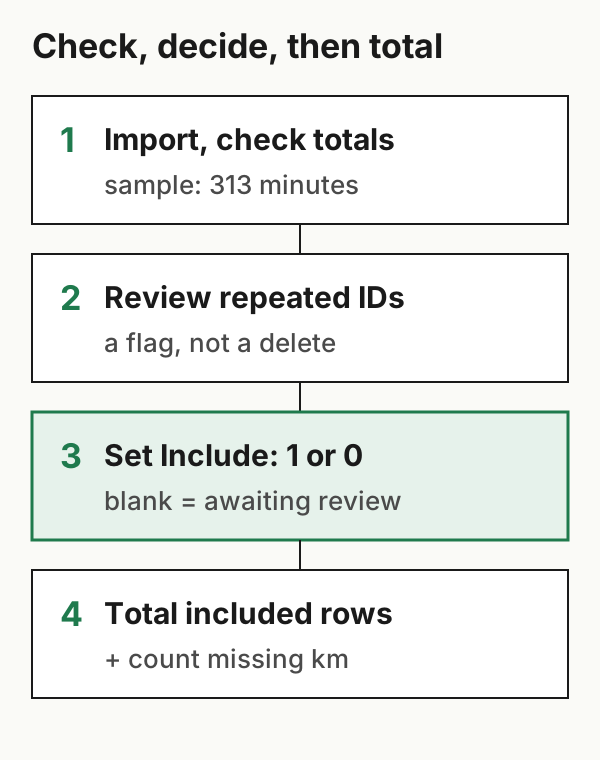
How the template makes its decisions
Weeks start on Monday, in UTC. Cell B4 holds the Monday that starts the week you want. The template reads the CSV's start times as UTC instants and doesn't convert them to your local time. An early-Monday workout in a time zone ahead of UTC can fall on Sunday in UTC, and so in the previous week. A late-Sunday workout in a time zone behind UTC can fall on Monday in UTC, and so in the next week. If you train across time zones, check rows near the start or end of a week.
You decide what counts. Column F on the log is Include: 1 keeps a row, 0 excludes it, and blank means it hasn't been reviewed yet. Blanks are counted in Rows awaiting review, so you can see what's still undecided. Column E flags an ID that has already appeared higher up, but it's only a warning and never changes Include itself. In the sample, the second copy of the repeated ID has Include set to 0. Set it to 1 and the summary changes to 361 minutes and 21.2 km of running. That's a quick way to see that the decision column drives the totals.
A missing distance stays missing. A blank distance isn't counted as zero. Known km adds up only the distances that exist, and No distance counts included rows without one. When No distance is above zero, Known km is a partial total. For strength, with no known distances at all, Known km is left blank rather than showing 0.0. The summary checks which included rows have a numeric distance before showing a total. Its missing-distance count lets you distinguish a genuine zero from an unknown value.
Other sport labels still count. Labels that do not exactly match Cycling, Running, Strength or Walking appear together under Other sport labels. This includes translated labels. They remain in the total minutes. You can change the four summary labels to match your own export.
The template reads up to 200 rows. The log reads rows 2–201 of the CSV source sheet. If you need more, extend the formulas, or start a new copy for each period.
Adding your own workouts
- Save a private copy of the imported template before adding real data.
- Before your first import, clear the synthetic records in CSV source A2:L201 and clear the old Include decisions in Training log F15:F214. Keep the headers and formula columns. Paste your own rows under the same source headers, starting at row 2.
- Make sure the
startcolumn holds real date-times in UTC, not text. If your pasted values are text like2026-10-08T06:45:00Z, convert them deliberately. One way is a spare column with=DATEVALUE(LEFT(C2,10))+TIMEVALUE(MID(C2,12,8)), then pasting the results back as values. Check a few against the originals. - Set
B4to the Monday you want, then set Include on every populated row. Look at both rows of any repeated ID before choosing. Count a confirmed duplicate once. Similar start times alone do not tell you whether two rows are duplicates.
The next batch
Append the next batch beneath the retained source rows; do not overwrite them or leave old Include decisions attached to different workouts. Stay within the 200-row limit. Start the next export a little before the last workout you imported. A short overlap catches workouts recorded later that day and some that reached Health late. The repeated-ID flag shows the overlap. An overlap can't catch a workout that reaches Health long after you exported, so now and then, re-export a whole past month and compare its row count and totals with your log.
The log only holds what the CSV contains. Keep the original workout files if you need routes or per-second sensor data.
Example files: format and limits · SHA-256 checksums.