Sync selected Apple Health workouts to Strava

If you want your rides on Strava but not your walks, you need a sync path that can choose by sport. Strava's own Apple Health connection has a single Automatic Uploads switch and an Import button beside each activity, according to Strava's Apple Health instructions. That leaves three practical options:
- Import rides by hand in Strava and leave Automatic Uploads off. Strava documents this route only for workouts recorded with Apple's Workout app in the past 30 days.
- Use the recording app's own Strava connection if your rides come from an app or bike computer that syncs directly.
- Use a rule-based transfer, such as WorkoutPort's sync rules, which match by recording source, sport and start date.
Whichever you choose, give each workout one path to Strava. If two paths both match the same ride, you can get a duplicate activity or a duplicate rejection. Either way, it becomes harder to tell which connection created what.
Check the source before the sport
Every Health workout has a sport and a source: the app that wrote it. Strava's importer only considers Apple Workout app recordings. It says activities written to Health by another company's app will not sync. If your rides come from a cycling app and your walks from the Apple Workout app, turning Automatic Uploads on would offer the walks and skip the rides, the opposite of what you want.
Open one ride and one walk in the Health app and note the source of each before changing anything.
A fictional week to plan against
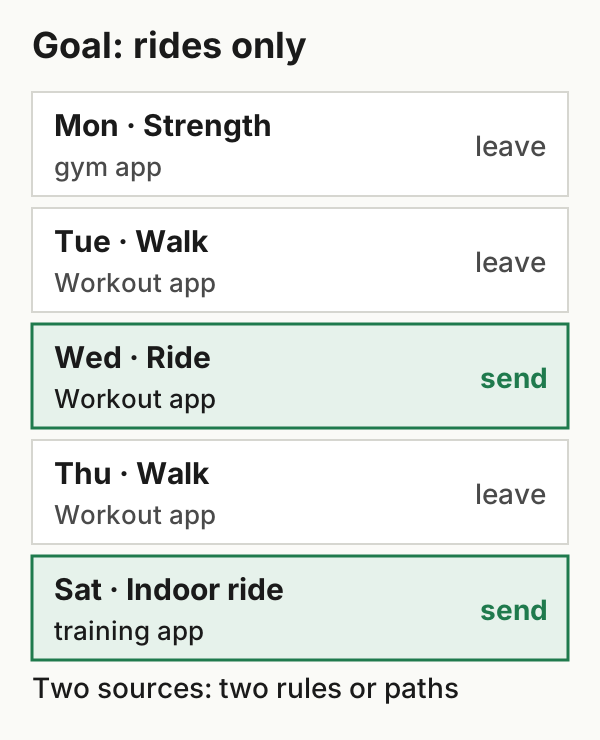
In this invented week, the goal is the Wednesday and Saturday rides on Strava and nothing else. Strava's importer could only ever offer Wednesday's ride, because Saturday's came from a different app. Turning Automatic Uploads on would also offer both walks.
The week, an earlier ride and the rule results below are in a downloadable CSV, so you can test the same reasoning against your own list.
Rules that select only the rides
In WorkoutPort, a sync rule combines a recording source, a sport and a start date, with optional route and distance conditions. A workout is eligible if any enabled rule matches it, so check your rules as a set.
For this week, a rule for Apple Workout app · Cycling · from 6 October gives:
| Workout | Eligible? | Why |
|---|---|---|
| Wed ride, Apple Workout app | Yes | Source, sport and date match |
| Tue and Thu walks, Apple Workout app | No | Different sport |
| Sat indoor ride, training app | No | Different source; needs its own rule or path |
| Mon strength, gym app | No | Different sport and source |
| A 2 October ride, Apple Workout app | No | Before the start date |
Saturday's ride needs a second rule for the training app's source. Check that app first: if it already sends rides to Strava directly, keep that connection and leave the ride out of WorkoutPort.
The start date includes the start. In WorkoutPort's rule code, a workout starting exactly at the rule's start time matches, and one starting a second earlier does not. For workouts close to midnight on the start date, confirm the date boundary in the preview before enabling the rule.
An older, broader rule can bring walks back. If you previously saved Apple Workout app · all sports, Tuesday's walk is still eligible through that rule. Turn it off or narrow it before enabling the cycling rule.
A route condition doesn't separate indoor from outdoor. A rule can require a route or require no route. A workout whose route status is unknown matches neither condition. A missing route can also mean location or permission problems on an outdoor ride. Use the source and sport to pick rides, and add a route condition only when route presence is what you actually care about.
Distance thresholds need a known distance. A minimum distance includes workouts exactly at the threshold. A workout with no recorded distance doesn't meet it, so a distance condition will also exclude rides that have no distance value.
The preview shows matches among the workouts WorkoutPort has loaded. It is not a count of your whole Health history. An eligible workout hasn't been uploaded yet: Strava still has to accept and process it.
Close the other path before turning on automatic sync
If Strava's Automatic Uploads is on, Wednesday's ride could arrive through Strava's importer as well as through your rule. The switch is under Settings → Manage Apps and Devices → Health in Strava, and it applies to every eligible Apple Workout app recording. Turning it off keeps walks off Strava and leaves the rides to the path you chose. Check each recording app separately. Disable a second upload path only for workouts you have assigned to WorkoutPort; keep the direct connection if that is the path you chose.
Send one ride, then let the rule run
- Allow WorkoutPort to read workouts in Health, and connect the Strava account you intend to use.
- Load a date range that contains a recent ride and a recent walk, then preview your rules. The ride should be eligible and the walk should not.
- Send that one ride manually. In Strava, check the date, sport, elapsed time, route and any sensor data you expect.
- Turn on automatic sync for the rule only after that ride looks right and the overlapping path is off.
If a walk still appears later, check which connection created it before changing rules.
What a rule can't change
A rule decides which workouts are sent. It can't add data a workout doesn't have. A ride with no coordinates can't gain a map through any transfer. Whether Strava accepts the activity without one is a separate question. If your rides come from an app with a direct Strava connection that carries what you need, that connection is often the simpler choice.
For older rides that Strava's 30-day importer no longer lists, see syncing older Apple Health workouts. If one workout is missing entirely, start with the source check for missing workouts. WorkoutPort provides the source, sport and date rules used in this example.
Example files: format and limits · SHA-256 checksums.