Apple Health XML, workout files and backups: what each copy is for

Keep more than one kind of copy, because each does a different job. iCloud Health keeps your current Health data in sync across devices signed in to your Apple Account. An encrypted computer backup is another recovery method Apple documents, and it can include Health data. Export All Health Data gives you an XML export for your own records and analysis. Original workout files (FIT, GPX or TCX) are what training services import, one activity at a time. None of these does every job, and each needs to be checked in its own way.
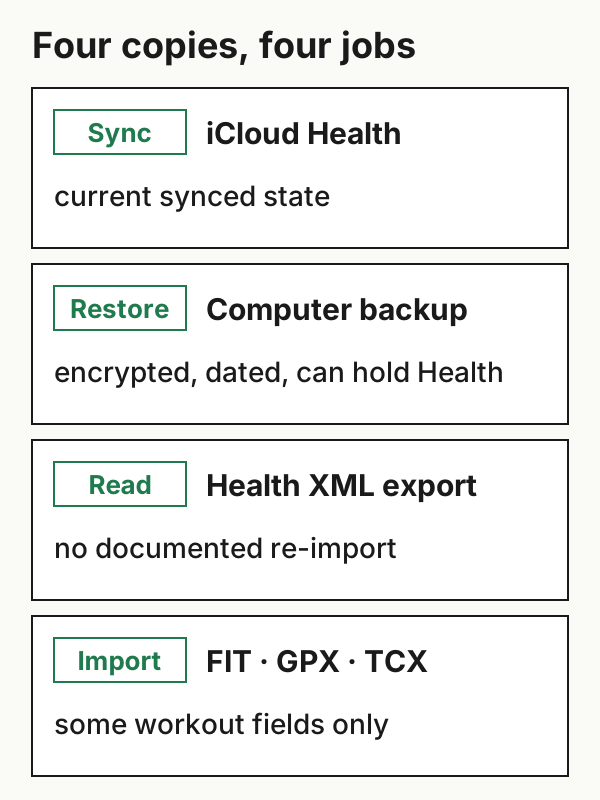
iCloud Health: the current, synced state
If you're signed in with your Apple Account, Apple says your Health data is stored in iCloud automatically, encrypted in transit and at rest. For the data to sync, your devices need to be signed in to the same account, connected to the internet and up to date. You can turn Health syncing on or off under Settings → your name → iCloud → Show All → Health → Sync with iPhone (Apple: back up your Health data).
Because it syncs to devices on the same account, this is one way Health data can appear on a replacement iPhone. What it holds is the current synced state, not a dated snapshot you can go back to. If something goes wrong with the data itself, sync carries the current state, not an earlier version. Health sync is a separate setting from iCloud Backup of the whole device.
An encrypted computer backup: a dated copy
Apple also documents backing up Health data by encrypting a backup of your iPhone on a computer (same Apple page). Apple's backup instructions add the details that matter for checking one (Apple: encrypted iPhone backups):
- An encrypted computer backup can include Health data.
- Encryption isn't turned on by default.
- You need the backup's password to use it.
- Manage Backups shows a lock beside an encrypted backup, with its date and time.
A computer backup is a dated copy of the device. You can't open it to read one workout or send it to another app. Seeing an encrypted backup with a recent date, and knowing its password, tells you more than just having it on a list. A successful restore is stronger evidence still, but you don't need to restore your phone just to check a backup.
Reading and keeping: the XML export
In Health, tap Summary, then your picture or initials, then Export All Health Data (Apple: sharing Health data). Apple describes the result as XML, "a common format for sharing data between apps". It's useful for your own records, spreadsheets and tools that read Apple's format.
Open it and check what it covers: the date range, whether your workouts are there, and the data types you care about. Apple doesn't document a way to import this export back into Health, so treat it as something to read, not a recovery route. Many training services import activity files rather than Apple's XML, so check a destination before assuming it accepts this export.
Moving activities: original workout files
FIT, GPX and TCX files are what training platforms import. A destination's importer can bring in the workout fields it supports from them, such as route, times and some sensor data, depending on the format and the service. They aren't a Health backup. Strava's Export Original returns a file as it was uploaded. Its account download is requested on the website under Settings → My Account → Download your account and arrives by email as a link, which can take a few hours (Strava export instructions).
Check each copy the way it can be checked
| Copy | Can it bring Health back on a device? | Workout import elsewhere? | How to check it |
|---|---|---|---|
| iCloud Health sync | Synced data can appear on a device signed in to the same account; current state only | No | Sync is on; the same account on your devices; recent data visible on another device |
| Encrypted computer backup | One Apple-documented recovery method; a successful restore is the strongest evidence | No | Lock and recent date in Manage Backups; you know the password |
| Health XML export | No Apple-documented re-import | Only by tools that read Apple's XML | Open it; note the date range and data types |
| Original FIT, GPX or TCX files | No | Supported fields, per destination | Open a few, including the oldest and one with sensor data |
Our inventory template has one row per copy, with columns for each kind of check. Fill in only what applies:
- Encrypted computer backup: record the date shown in Manage Backups, that it's encrypted, and that you have the password. Note any real restore you've done, but don't do one just for the record.
- iCloud Health: record that sync is on, which account and devices use it, and that it represents the current state.
- Health XML export and workout files: open them on another device or computer. Write down the earliest and latest items you actually see and the fields you checked, such as a route in one file or heart rate in another.
- Every copy: note the limits. Data that was never recorded, or never written to Health, isn't in any Health copy. Data a recording app kept to itself can only come from that app's own export, if it offers one.
Before deleting anything at a source, confirm the copy you plan to keep passed its checks. The small-batch migration check covers this for activity files. Exports contain sensitive data, such as locations, heart rate and, for Health, much more, so store them and the inventory like medical records.
Where WorkoutPort fits
WorkoutPort reads workouts from Apple Health and can send them to Strava or export them as files. Those exports are working copies of individual workouts, useful for moving or checking one workout, not a backup of Health.
Example files: format and limits · SHA-256 checksums.