Export an Apple Watch workout as GPX on iPhone
The Health app has no button for exporting one workout as GPX. Apple's Export All Health Data produces an XML export of your Health data, all in one go, as described in Apple's guide to sharing Health data. Even that export needs checking for what it actually covers. To get a single workout as a .gpx file, you need an app that can read that workout and write the file. If the export completes, open what you saved. A completed share sheet only tells you that a file was produced, not what the file contains.
Pick the export source
Start from where the workout already exists:
- It is already on Strava. On the Strava website, an activity's menu has Export GPX. Export Original returns the file in the format it was uploaded (Strava export instructions). Strava notes that exporting is a website feature, and that GPX from an activity without GPS data is empty or unreadable.
- A third-party app recorded it. Its own export may include data it never wrote to Health. Use it if it gives you what you need.
- It only exists in Apple Health. You need an app that can read the workout from Health and write it to a file. WorkoutPort has a local file export: choose GPX as the format and, once the export finishes, save the result to Files. Read access is a precondition, not a guarantee that a file will be produced.
The reading app needs permission to read the workout's route, not just the workout. Health permission screens list routes separately; Strava's own setup, for example, asks for "Workouts & Routes". With route access off, the workout can still be read but its route cannot.
When a GPX route isn't available
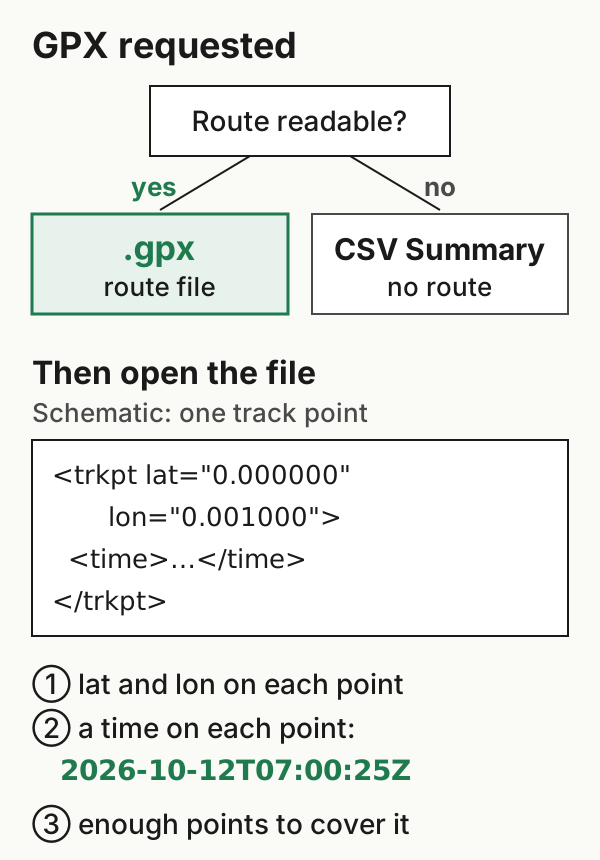
GPX holds geographic data. A workout with no readable location samples has nothing to put in a track. That can happen when no route was recorded, as for an indoor ride or a strength session. It can also happen when location wasn't available during recording, or when the exporting app can't read the route because of Health permissions. No export can recover location samples that were never recorded or that it isn't allowed to read.
In WorkoutPort, when you ask for GPX and GPS data isn't available for the workout, the export can fall back to a CSV summary instead. If you asked for GPX and got a .csv file, that fallback is the likely reason: check route permission and how the workout was recorded. A CSV on its own doesn't say whether the workout had a route, because you can also choose CSV on purpose for a workout that has one.
Check the saved file
Open Files and find what you saved. There are three checks, and you can practise them on our synthetic GPX file. It was written by hand and isn't output from WorkoutPort or any device.
1. The extension. You asked for GPX, so the file should end in .gpx. If it doesn't, read the section above before trying again.
2. Track points with coordinates. GPX can describe a recorded track, a planned route or individual waypoints. A recorded workout is normally a track: <trkpt> elements, each with lat and lon attributes. Count them. A track with no points has the structure and no location data. A small number of points is fine for a short workout, but check that they span the workout you expect. A point count alone doesn't tell you that the whole route is there.
3. A time on each point. Recorded tracks normally have a <time> in each track point, like <time>2026-10-12T07:00:25Z</time>. Strava's upload specification requires a time with every trackpoint. If yours has none, the file lacks timing that Strava needs. That doesn't mean the workout never happened, because times can be lost in export or conversion. Go back to the original recording and export again from there.
The Z means UTC, so the hour may differ from what your phone shows. That's display, not a fault in the file. Heart rate or cadence, if present, sit in an <extensions> block in each point. Which extension names a destination reads is up to that destination; Strava lists the ones it reads in the same specification.
Before you send it anywhere
Keep the exported file alongside the original rather than editing it. A GPX file contains coordinates, including the first point it recorded, which may be near home. Look at it before you share it publicly. If you need sensor data more than the map, see what each file format kept in our export test before settling on GPX.
Example files: format and limits · SHA-256 checksums.